
Resetting Your Office365 & Tableau Password
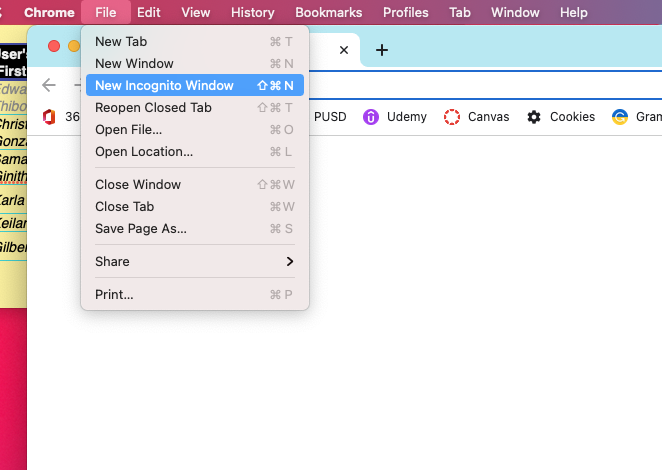
Open an Incognito Window in Chrome
- Click the 3 stacked dots
- New Incognito Window
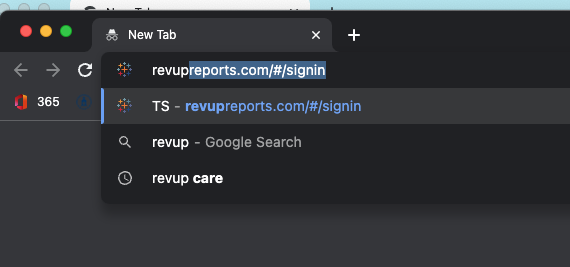
Go to Revup.reports.com
- In your search bar type:
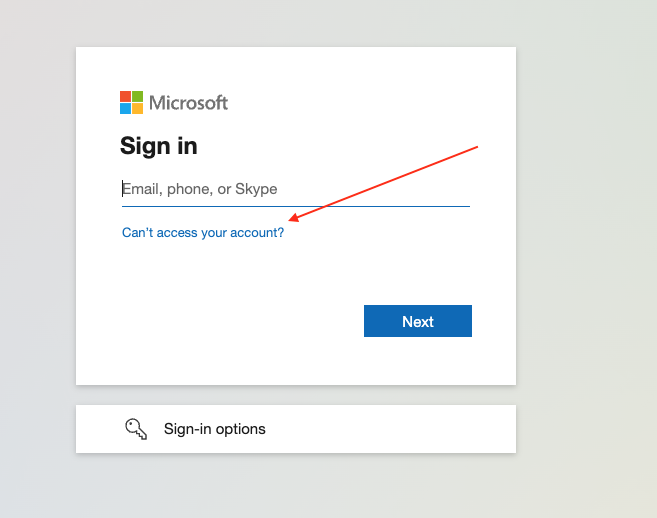
Click “Can’t access my account”
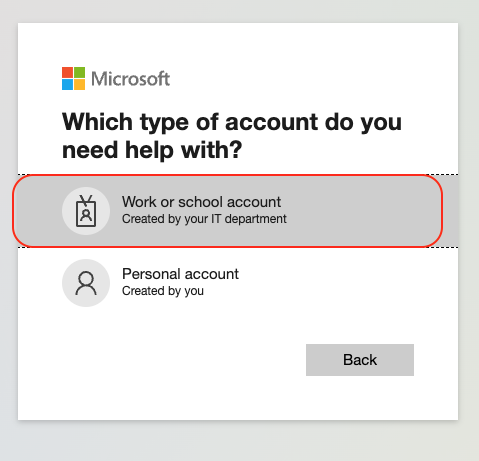
Click “Work or school account”
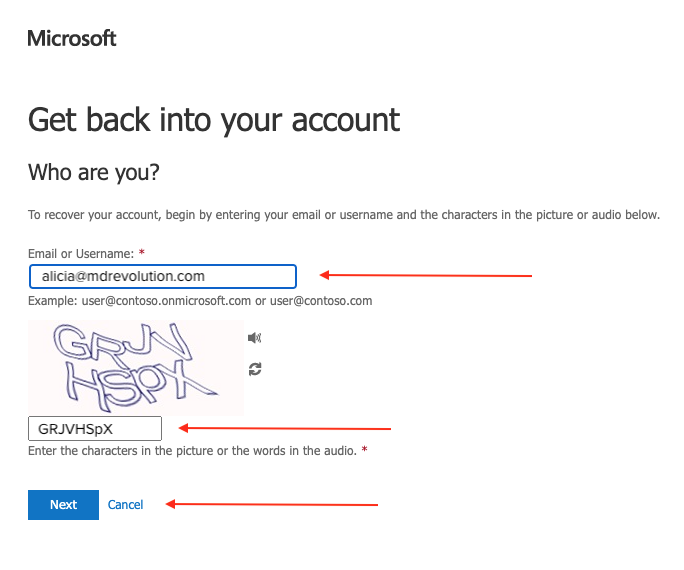
Enter your USERNAME@mdrevup.com
-
- Your username is (first initial + last name @mdrevup.com)
- Example: Alicia Burgess = aburgess@mdrevup.com
- Enter the charters from the picture
- Then Click “Next”
- Enter the charters from the picture
Select your first verification method
- Example:
- Select “Email my alternative address”
- Then, click “Email”
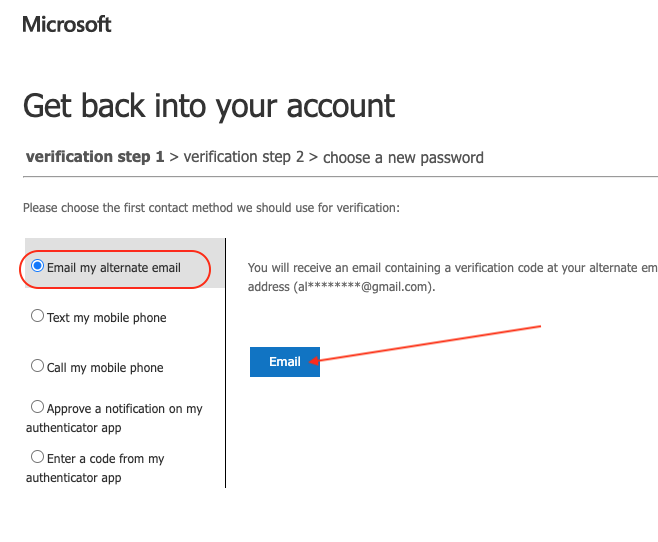
- Then, click “Email”
- Select “Email my alternative address”
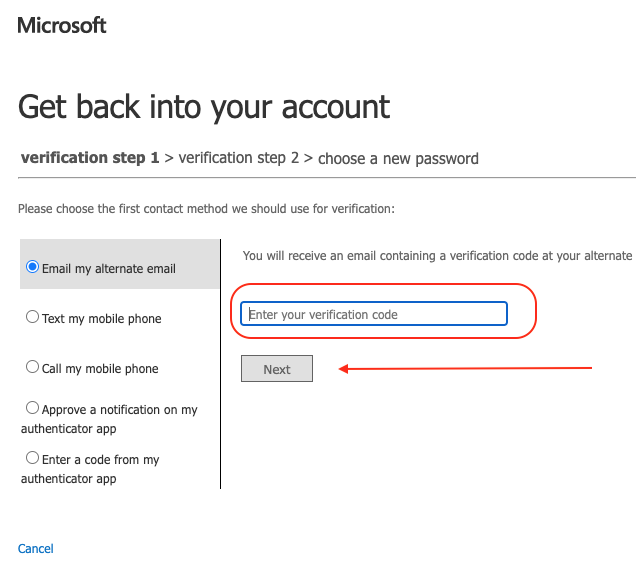
Enter you verification code
- Click “Next”
Select your first verification method
- Example:
- Select “Text my mobile phone”
- Then, click “Email”
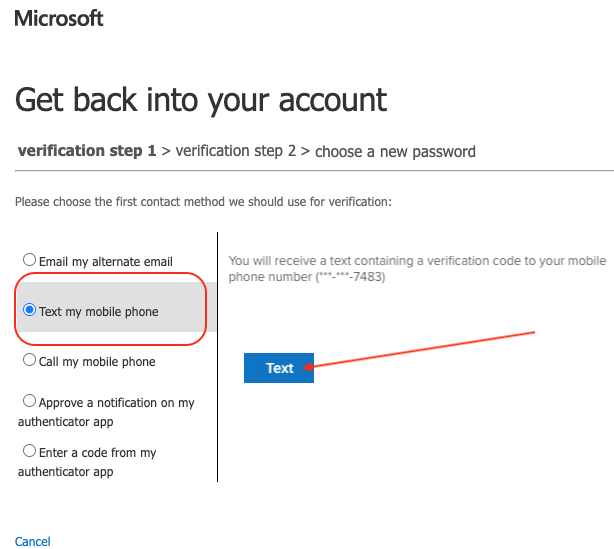
- Select “Text my mobile phone”
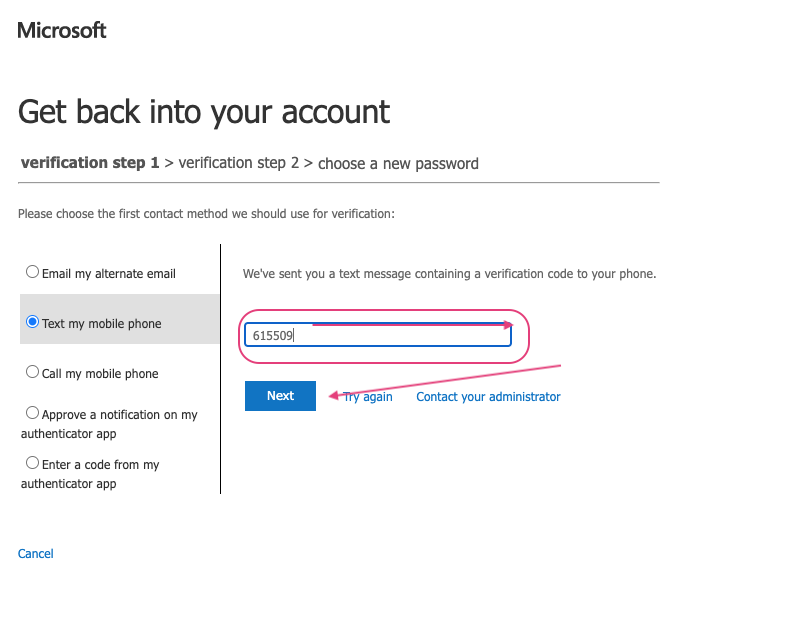
Enter you verification code
- Click “Next”
Choose a new password
- Enter your new password
- Enter it a second time to confirm
- Click Finish
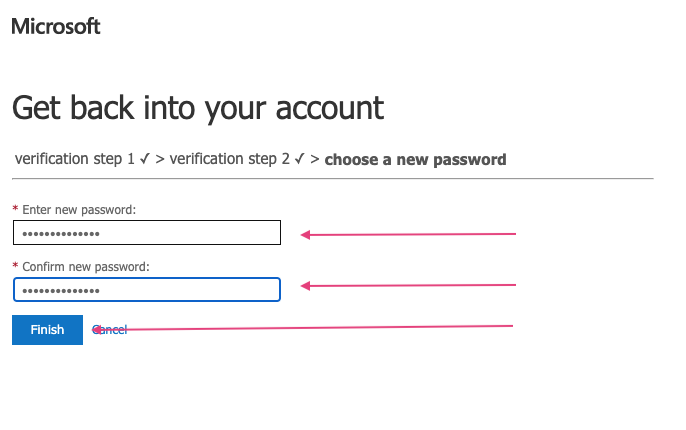
- Enter it a second time to confirm
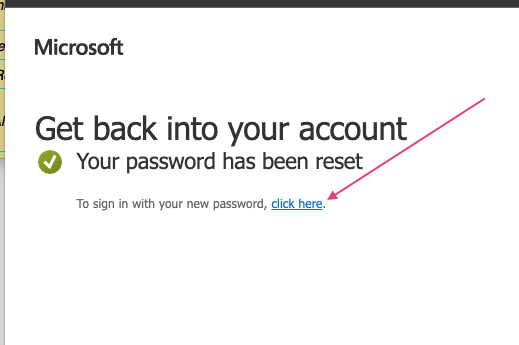
Your password has been reset.
- Click on the “Click here” link to return to the login screen
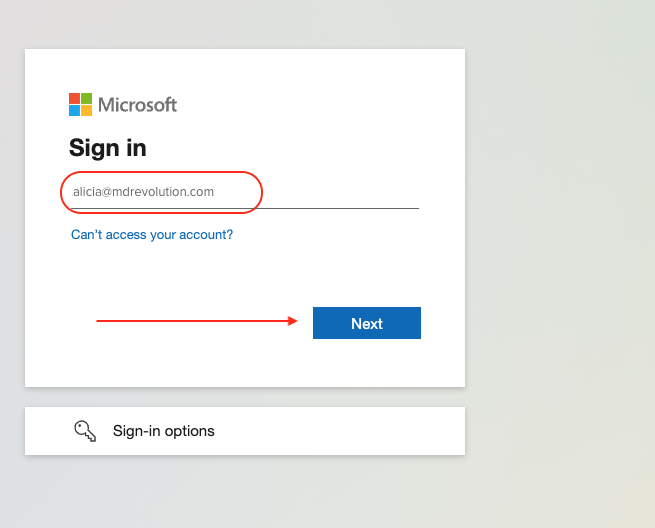
- Enter your USERNAME@mdrevup.com
-
- Your username is (first initial + last name @mdrevup.com)
- Example: Alicia Burgess = aburgess@mdrevup.com
- Click "Next"
-
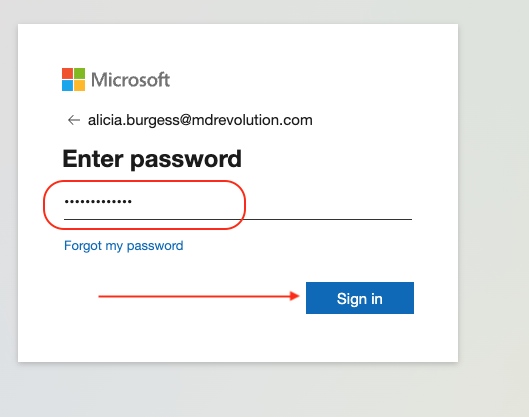
Enter your Password
- Click “Sign in”
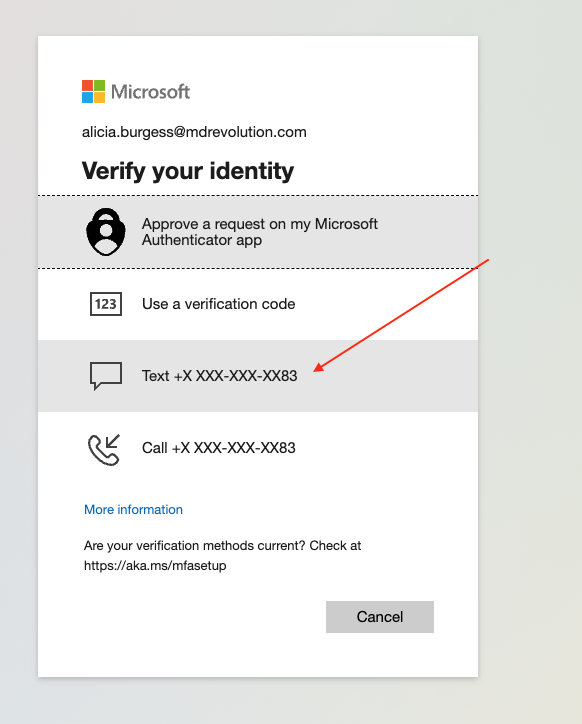
Verify your identity
- Select a method to verify your identity
- Depending on verification method follow the necessary steps to verify you identify
Go to Revup.reports.com
- In your search bar type:
- https://revupreports.com/#/signin
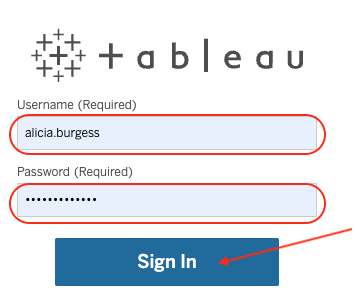
- Enter your Tableau Username
- Enter your NEW password
- Click “Sign In”
- https://revupreports.com/#/signin
***Click here to download these instructions***
Comments
0 comments
Please sign in to leave a comment.